Updated 6 min read
Your first half hour with werkfolk
Sign in with an emailed link, tell your AI Employees how you work, meet all five, and find your way around the Workbench, Calm view and the phone.
Lena Hoffmann runs Hoffmann Tischlerei, a joinery in Berlin. She has a workshop to run, fitting jobs out on site, and an inbox that fills up while her hands are on a router. Her first half hour with werkfolk went like this: an email link instead of a password, a subscription, a few minutes telling her AI Employees about the business, and then the screen she now starts every day on. Here is each step, with what you will see.
Sign in with a link, not a password
There is no password to invent. Press Sign in at the top of werkfolk.com, type your email address and press Email me a link. If the address is new, signing in is also how you sign up.
The link in your inbox works once and expires after 30 minutes. It opens a page that reads Confirm sign-in, and the Sign in button on it is what signs you in. Opening the page alone does nothing, because some mail scanners open links before you do. Once in, you stay signed in for 30 days, extended as you use the app, up to 90 days.
Subscribe
Signing in costs nothing, but your AI Employees start work once the account has a subscription. Until then the app shows Hire your AI Employees with See pricing. Choose Monthly or Yearly and press Subscribe; payment happens on Stripe's own checkout page. Starting checkout creates your company's account. When the payment clears, Setting up your AI Employees shows for a moment, then the app opens.
Tell them about the business
The first time you arrive, werkfolk asks about the business. Most of it is read rather than typed.
- What's your website? Your AI Employees read it and learn the business from it. Without one, press We don't have one and give the name and one sentence about what you do.
- Here's what we found: what the page said, as rows. Press a row only if it is wrong, then Looks right.
- What should they take off your plate first? Six jobs, pick any: Answering customer emails, Booking and moving appointments, Chasing unpaid invoices, Receipts, bills and expenses, Following up quotes and leads, Posts, newsletters and reviews. Each names the AI Employee who does it, and your picks decide who you start with and which connections are offered first.
- How do you like to work? The one part you have to answer. How far they go on their own (Check with me first, Prepare it, I check, or Routine alone, tell me after), what to do when something is unclear, how you want to hear from them, and how much they should write. You can also tick what always needs your yes first, such as Paying or moving money or Writing to someone new.
- Help them get to know the business: customers, why they pick you, what has to go well. All optional.
- Here's what you told us: every answer, each one press from its step, then Save and continue.
- Meet your AI Employees, where you can give each one a name, and Connect your tools, which you can skip.
The answers to "How do you like to work?" are not a note filed somewhere. Every AI Employee reads them on every job, ranked under your own standing orders and never above the rule that sending waits for you. If you would rather talk than tap, the first-jobs step offers Talk it through: the Assistant calls you through the questions in about five minutes, and you check what it wrote down before anything is saved.
Everything you said stays editable under Your business in Settings.
Five AI Employees
Every account has the Assistant and the Accountant. You add the Marketer, the Sales Rep and the Researcher from the AI Employees screen, which Manage beside Your team opens. Each one reads Included in your plan: hiring them costs nothing extra.
Your team: five AI Employees says what each one does and how they pass work between them.
The Workbench
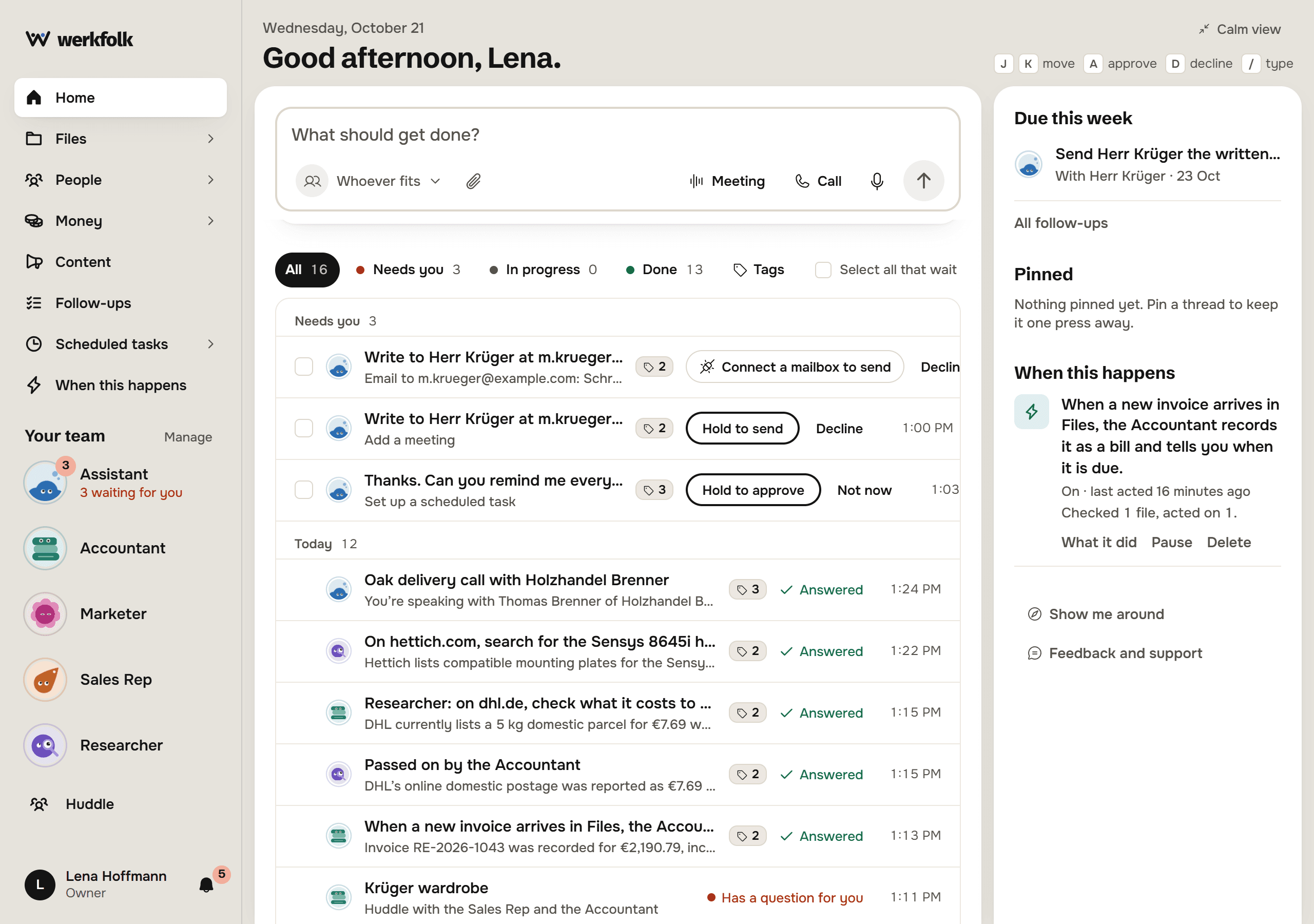
The home screen is where everything starts. The rail on the left holds the destinations and Your team, one face per AI Employee, with a count when something of theirs waits for you.
The command bar
Write what should get done, in your own words. Whoever fits means the words decide who takes the line. Press it to pick one of your team yourself, for that one line. The paperclip attaches a file, and typing @ names one from Files.
The microphone writes what you say into the line, so you read it before it goes. Meeting records a meeting in the room or in a browser tab (Meetings: prepared before, written up after). Call starts a spoken call with the Assistant (Call your Assistant and keep working).
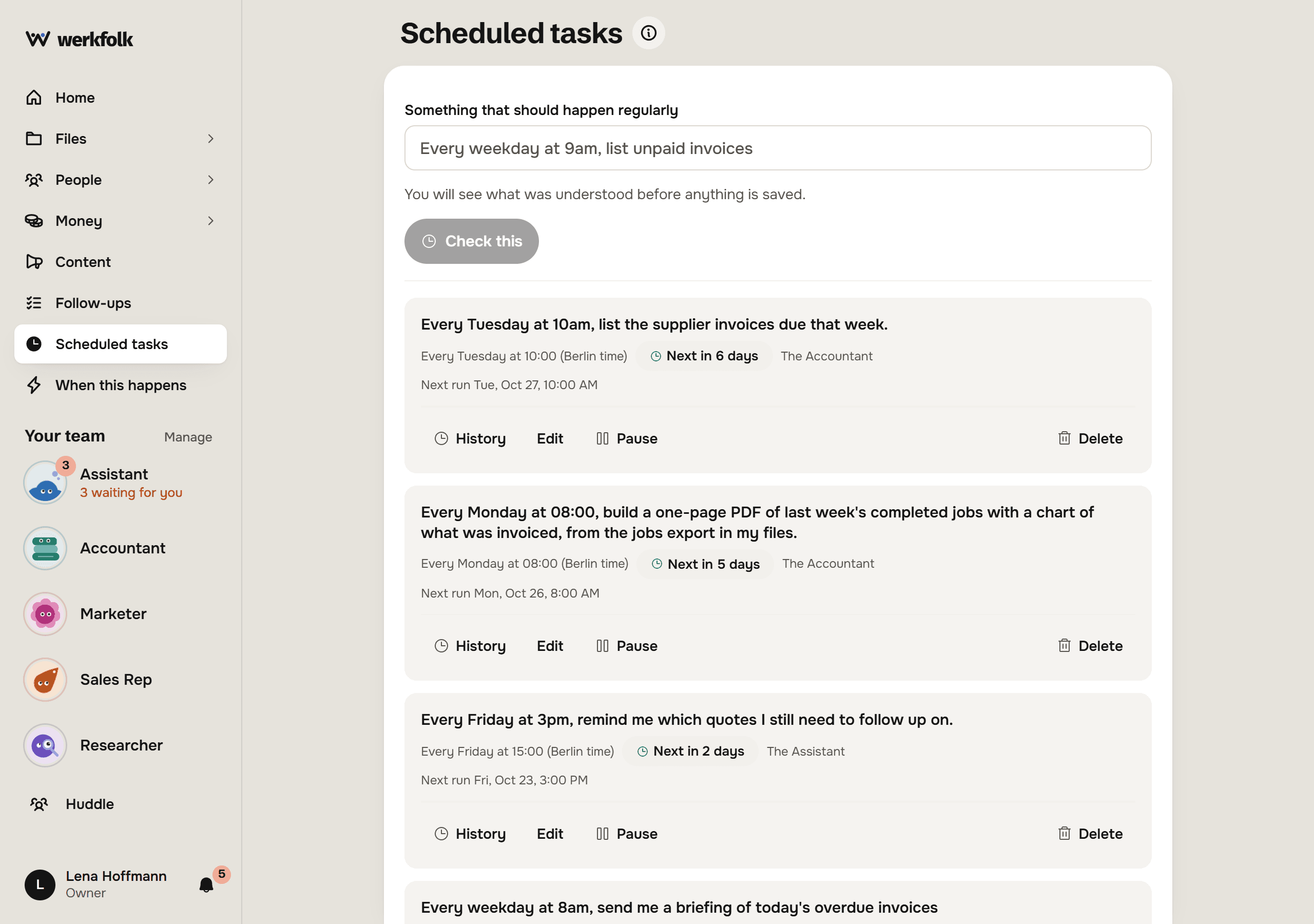
A line that sets something up, such as "when a new invoice arrives in Files, record it as a bill", is read back first and offers Set it up instead of sending. Work that runs without you covers those.
Today
Under the bar sits the Today list: one row per thread, with filters for Needs you, In progress, Done and Tags. Approvals are decided right in their row with Hold to approve or Hold to send. On a keyboard, J and K move, A approves, D declines and / goes to the bar. How the work stays in order explains threads, marks and tags.
Right now and On their own
While an AI Employee works, a Right now panel appears under the bar: its face, the thread's title, the steps it has finished and the one it is on. When nothing runs, the panel is not there.
The On their own row holds what they started without being asked: three follow-ups from a meeting with Make them, a receipt recorded with Undo. One click each, or the cross to set one aside.
The Horizon
The Horizon answers "when does what happen". Pick a day, see its hours with a pin for each meeting and each thing that will run, and open This week for the week as rows. New meeting adds one. The arrows page back and forward, and the month opens a date picker.
The right column
Due this week lists follow-ups and bills as they fall due, with All follow-ups under them. Pinned keeps threads one press away. When this happens shows your rules and what each has done. Under them, Show me around replays the tour and Feedback and support reaches a person.
Calm view and Full view
Some mornings you only want to say what should get done. Calm view, top right of the home screen, puts the command bar alone on the page, with at most three quiet lines under it: what is in progress, the next follow-up and the next meeting. The arrow at the foot says how many things wait for you and slides down to the full Workbench. Full view turns it off. The choice is kept on each device, and the button appears wherever the screen is wide enough for two columns.
On a phone
werkfolk works in a phone's browser. On a narrow screen the home screen becomes one column, and on a phone the command bar sits at the bottom, under your thumb. The On their own cards snap past one at a time, and a thread opens as its own screen with the way back to Today.
Where to go next
Try it on your own business.
One subscription covers all five AI Employees and everything in these articles.