Updated 5 min read
Connect mail, calendars, Personio and Telegram
Outlook, Apple Calendar, Personio, Cal.com, Calendly and Telegram, what each gives your Assistant, plus the address that reaches it.
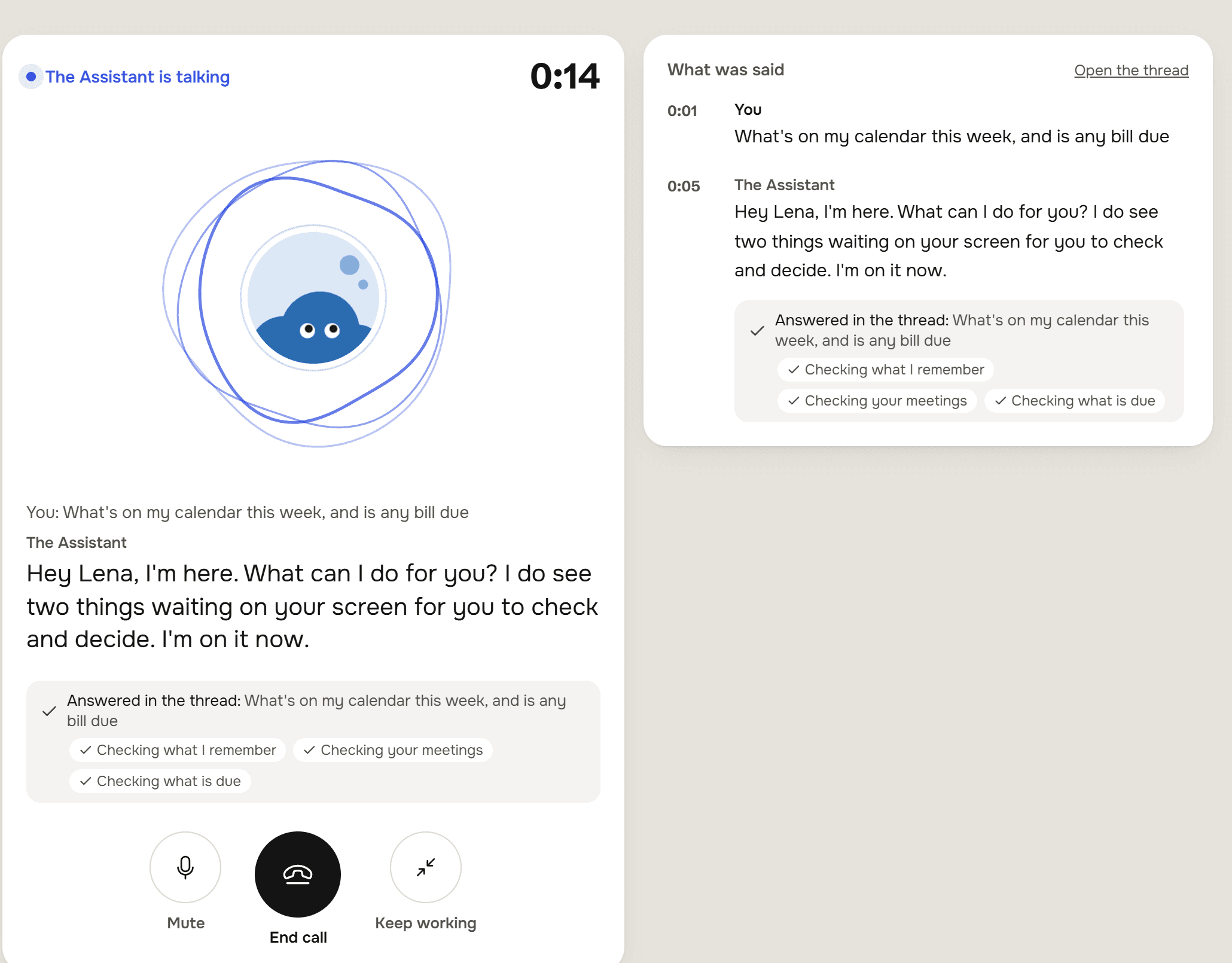
Lena Hoffmann runs Hoffmann Tischlerei from an Outlook mailbox and an iPhone calendar. Site visits live in an iCloud calendar, and absences in Personio. Customers book a measuring appointment through Calendly. None of that is in werkfolk until she connects it, and once it is, her Assistant can answer "what's on this week, and who is off?" from the real thing instead of from what she remembers to type in.
The Integrations screen
Open Settings and choose Integrations. Six services are listed under Available, and everything you have connected sits under Connected.
| Service | What your Assistant gets | What Connect asks for |
|---|---|---|
| Microsoft | Outlook mail, read and sent, and the Microsoft calendar | Sign in with Microsoft |
| Cal.com | The bookings made through Cal.com | An API key, made in Cal.com under Settings, Developer, API keys |
| Calendly | The meetings booked through Calendly | Sign in with Calendly |
| Apple Calendar | Your iCloud calendars | Your Apple ID and an app-specific password, not your usual one |
| Personio | Who on the team is away, and when | A Client ID and Client Secret, made by a Personio admin with read access to absences and persons |
| Telegram | A second way to write to the Assistant | A bot token from @BotFather in Telegram |
Mail, calendars and absences are the Assistant's work. The Accountant, the Marketer, the Sales Rep and the Researcher don't read them.
What pressing Connect does
Press a tile and a panel opens under the grid, titled Connect and the service's name. For the services that need a key, the panel says where to make it before you start. Press Connect and werkfolk opens the service's own sign-in page: in the same tab on a computer, in the system browser on a phone. The link is good for ten minutes.
When you're done, come back to the screen and press Check again at the foot of it. The new connection appears under Connected.
Who reads a connection
Everything you connect belongs to the account, with no sharing step and nothing hidden from you. What it brings in is there for the AI Employee whose job it is, and no email leaves a mailbox without your yes.
With Outlook connected, the Assistant can read recent mail, up to 30 days back and 50 messages at a time, and save an attachment from a message to Files.
It never sends on its own. Every email it writes lands as a card in the thread you asked in, and goes out only when you press send on it. Keep the final say covers that card. Until a mailbox is connected the card still holds a finished draft, with Connect a mailbox to send where the send button would be.
Calendars and bookings
From Outlook, iCloud, Cal.com or Calendly, the Assistant can list what's coming up, up to 31 days at a time, with each event's title, start and end, place and organiser. Ask for the bookings as a file and you get a spreadsheet of up to 92 days.
Cal.com and Calendly can also start work: a new booking can be the "when" of a When this happens rule. Work that runs without you explains those.
Your werkfolk calendar is the one on the home screen. When you add a meeting there, or approve one the Assistant proposed, you can choose Also put it in Outlook or Apple Calendar, and werkfolk puts a copy there. If Outlook refuses the copy, the meeting is still saved in werkfolk, and the screen says so and tells you to reconnect Microsoft. Meetings has the rest.
Absences from Personio
Personio gives the Assistant names, first and last days, half days, and whether an absence is approved or only requested, up to 62 days ahead. It never gives the reason. werkfolk doesn't read that field at all, and the Assistant is told not to guess why somebody is away.
To the Assistant it reads as "who is away and when, but never why". Nothing is requested, approved or changed in Personio from werkfolk.
Telegram
The bot is connected once; an account has one. Then press Link my Telegram, which opens Telegram with a code that is good for ten minutes, and the bot answers that you are linked.
After that, a private message to the bot is a message to your Assistant, and the answer comes back in Telegram.
- Text only. Photos, voice notes and documents sent to the bot are dropped without a reply.
- A long answer arrives as at most three messages, the last ending "The rest of this answer is in the app."
- A file the Assistant makes is sent as a document, up to 20 MB.
- Twenty messages an hour.
- A message from a Telegram account nobody linked gets nothing back.
Your Assistant's own email address
Every account has an address that reaches the Assistant, on Settings, Account, under The Assistant's email address. Write to it from the address you sign in with and the email becomes work for your Assistant. The reply comes back from the same address, in the same email thread, to you alone.
Attachments come along, up to ten per email at 25 MB each, and land in Files. Mail from any other address is ignored without a reply. The limit is twenty emails an hour.
Press New address if the address gets out. The old one stops working at once.
When a connection needs signing in again
Passwords change and permissions get reviewed. When that happens, werkfolk stops reading the account and tells you: the row shows Needs reconnecting, a line on the home screen says a connection needs reconnecting, and you get a notification. Press Reconnect and sign in again; it asks nothing else.
Disconnect ends werkfolk's access for good and deletes the stored credentials, after you confirm with Yes, disconnect.
Try it on your own business.
One subscription covers all five AI Employees and everything in these articles.