5 min read
Call your Assistant and keep working
Call any AI Employee from the browser. The voice hands each ask to them, cards are decided on the call, and the thread keeps the answers and the transcript.
Wednesday lunchtime at Hoffmann Tischlerei. Lena has sawdust on her hands, a customer due at two and a supplier she keeps forgetting to ring. Typing is the last thing she wants to do. So she presses Call and asks out loud: what's on my calendar this week, and is any bill due?
Two minutes later the questions are answered, a weekly reminder is waiting to be confirmed, and the whole call is written down in a thread. This is how that works.
Starting a call
There are three ways in, all in the browser:
- Call in the command bar on the home screen, while the line is empty. It calls the AI Employee you have in focus, or the Assistant when nobody is.
- Call on an AI Employee's desk, the small chip in its header. Every AI Employee you have hired can take a call, not only the Assistant.
- Call about this, the phone icon at the top of a thread. The call is about that thread, and everything it produces lands in it.
The browser asks once for the microphone, the call rings softly, and it stops ringing the moment the AI Employee picks up. The voice greets you by your first name and asks what it can do. It already knows today's meetings and how many cards are waiting for you, so it can mention them without being asked.
What the call screen shows
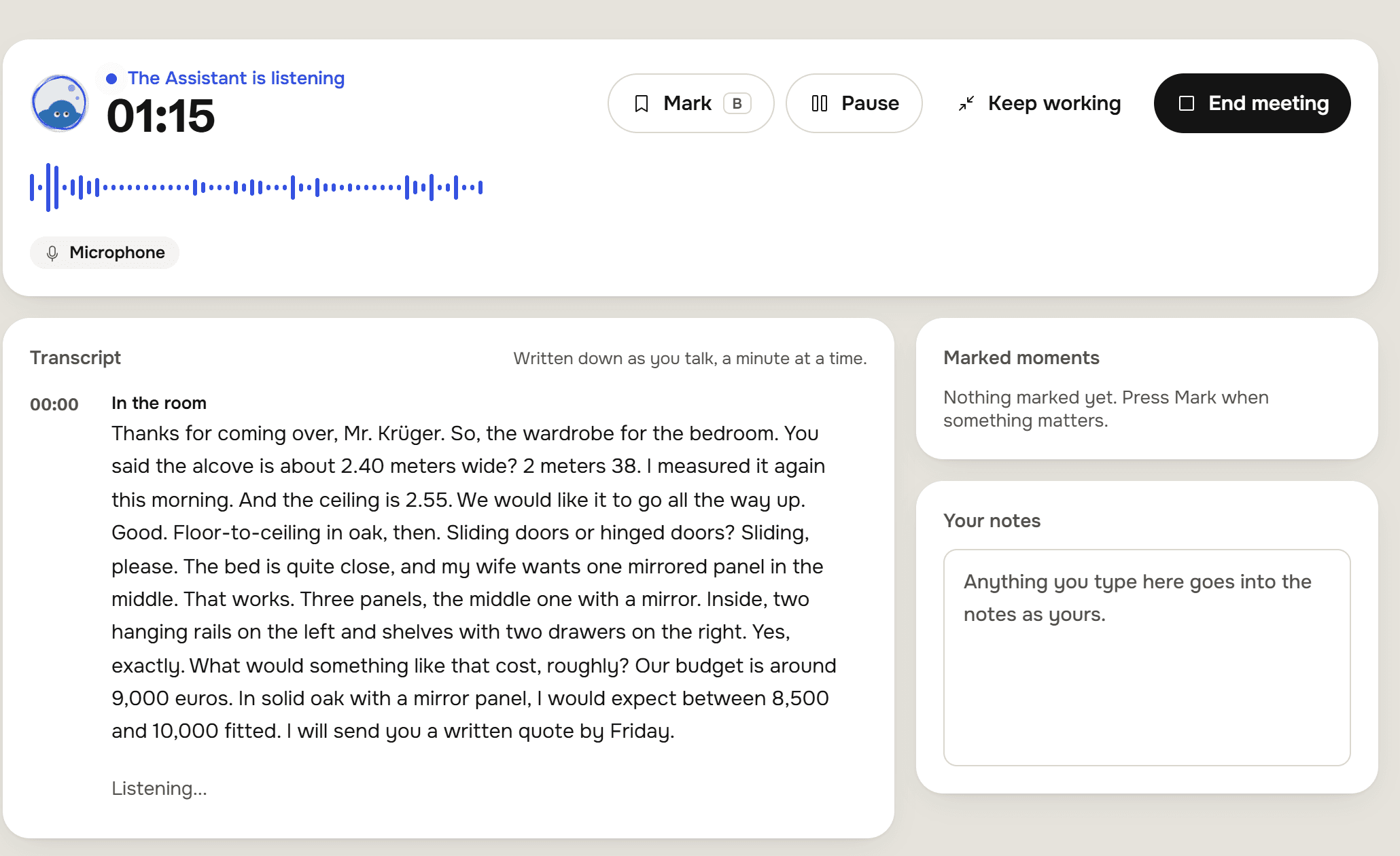
The line at the top says what is happening: Listening, The Assistant is talking, The Assistant is working on it, or You are muted. The clock counts the call.
Under the face you see the last thing said, and below that a row for each thing you asked. While the work runs, the row reads Working on it and fills with the steps as they happen, such as Checking your meetings or Setting up a schedule for you to confirm. When it is done, it reads Answered in the thread. The voice says the steps as they go too, so you know it hasn't gone quiet on you.
On the right, What was said keeps the whole conversation with a time against each line, and Open the thread takes you to where the answers are written.
The voice talks, the AI Employee works
The voice on the call doesn't look things up itself. When Lena asks about her calendar and her bills, her words go to the Assistant as an ordinary request, with the same tools, memory and rules as a typed one. The Assistant checked her meetings and what is due, wrote the answer in the thread, and the voice read it back to her.
If a request takes longer than half a minute, the voice says the work carries on and the answer will be written in the thread, and the call goes on. If you correct yourself halfway ("no, Thursday"), the correction steers the work already running.
A question can also go to a colleague. Ask the Assistant for a social post on a call and it can pass the request to the Marketer. When the Marketer answers while you are still on the call, the voice tells you what it said.
Cards are decided on the call
Then Lena asked: "Can you remind me every Friday at 9 in the morning to call Thomas Brenner about the oak delivery?"
A reminder that runs on its own is a scheduled task, and a scheduled task always waits for you to confirm it. The Assistant prepared it, and the card appeared on the call screen under her request: Set up a scheduled task, with When, Who and What, and the buttons Hold to confirm and Not now. You press and hold it right there, without leaving the call. The voice never approves anything for you; it only hears what you decided.
Lena didn't decide straight away, which is fine. The card stays in the thread and on the home screen under Needs you, like any other card, for seven days. Keep the final say covers cards in full.
Keep working while you talk
Keep working shrinks the call into a small floating pill: the AI Employee's face, a sound wave, the clock, Mute and End call. You can open Files, read a thread or check Money while the call goes on. Drag the pill to any corner and it stays there next time. Press the face or the clock to go back to the full call screen.
What ends up in the thread
When you hang up, the call screen says how long it lasted and how many things were answered, with Open the thread, Call again and Go to Today.
The thread holds three things:
- Each request and its written answer. What you asked becomes your line in the thread, and the answer sits under it. Small talk stays out.
- A closing line. It starts "The call ended after 2 minutes. What you asked for:" and quotes each request with what became of it: answered above, a card waits for your approval, or still being worked on.
- The transcript, the whole call written out as a Word file, also kept on the Files screen under Meeting notes.
Call again rings the same AI Employee and, on the same day, files the new call into the same thread, so a follow-up call doesn't start from nothing.
What to know
- A call lasts at most half an hour. Two minutes before the end the voice says so. Call again to carry on.
- You have 60 minutes of calls a day. The day starts at midnight where you are. When the minutes are used up, the call screen says "You have reached today's calls. You can call again tomorrow."
- It is a call in the browser, in Chrome, Edge or Safari, on a computer or a phone. There is no phone number to dial, and the werkfolk phone app sends you to the browser for calls.
- The voice speaks the language you speak. The closing line, the transcript and the thread are written in English or German, following your business's language.
- If the connection drops for more than a few seconds, the call ends. What was asked is already in the thread, and you can call again.
Where to go next
Try it on your own business.
One subscription covers all five AI Employees and everything in these articles.