6 min read
Work that runs without you
Scheduled tasks, rules for when something happens, and the moves your AI Employees make on their own, each with a dial, an Undo and a place on the Horizon.
Some of Lena's work comes round on its own clock. Every Monday she wants last week's finished jobs on one page. Every Tuesday, the supplier invoices due that week. When Holzhandel Brenner's invoice lands in Files, it should go into the books without her typing a figure. werkfolk has three ways to hand that kind of work over: a time, an event, and the moves the AI Employees already know. This guide covers all three, and where you see them coming.
Scheduled tasks: one sentence, read back
Open Scheduled tasks in the rail. Under Something that should happen regularly, write what should happen and when, the way you would say it to a colleague, and press Check this. werkfolk reads it back under This is what I understood: with the schedule, the work in plain words, the AI Employee who will do it and the first run. Yes, that's right saves it; Say it differently lets you rephrase. Nothing exists until you confirm.
What it can understand:
| You say | It runs |
|---|---|
| "every morning", "every day at 7" | Daily, at 09:00 when you give no time |
| "every weekday at 8", "Mondays and Thursdays" | Weekly, on one or more days |
| "on the 1st of every month" | Monthly. The 29th, 30th or 31st falls back to the last day of a shorter month |
| "every 30 minutes", "every 2 hours" | An interval, from every 10 minutes to every 12 hours |
| "remind me on Friday at 3pm" | Once, then it reads Done |
It cannot wait for an event ("when an invoice arrives" is a rule, below) and refuses a one-off date that has passed. The instruction can be up to 500 characters and can name a file in Files. The time zone is your device's at setup, and an 08:00 task stays at 08:00 when the clocks change.
werkfolk picks the AI Employee from the work: money to the Accountant, mail and the calendar to the Assistant, and the others for their own work once you have hired them.
What each run does
At the set time the AI Employee does the work as you, with your connections and nothing more, as if you had asked yourself. Every run of one task files into the same thread on your Today list, headed From a scheduled task: and your instruction, and a quiet line goes to Notifications without buzzing your phone.
A run less than an hour late still goes ahead and says so; later than that it is skipped. A run never starts while the previous one is still going.
History, pause, failures
History lists every run: Ran, Ran late, Running now, why it was skipped, or why it failed, each one press from its reply. Edit goes through the same check again. Pause holds the runs until Resume. Delete asks once, in the row: Delete this task or Keep it.
A failed run says so in the task's thread the first time. Three failures in a row stop the task: it reads Stopped, and you get a notification and an email headed "A scheduled task has stopped running". Set it up again once the cause is fixed.
Two other ways in
Under any reply, Do this regularly offers Every weekday morning, Every Monday morning or On the 1st of the month, reads it back, and Schedule it saves it. Or ask in a line, "every Friday at 3pm, remind me which quotes are open", and the AI Employee proposes a card you confirm (Keep the final say).
An account holds 20 scheduled tasks.
The Monday report
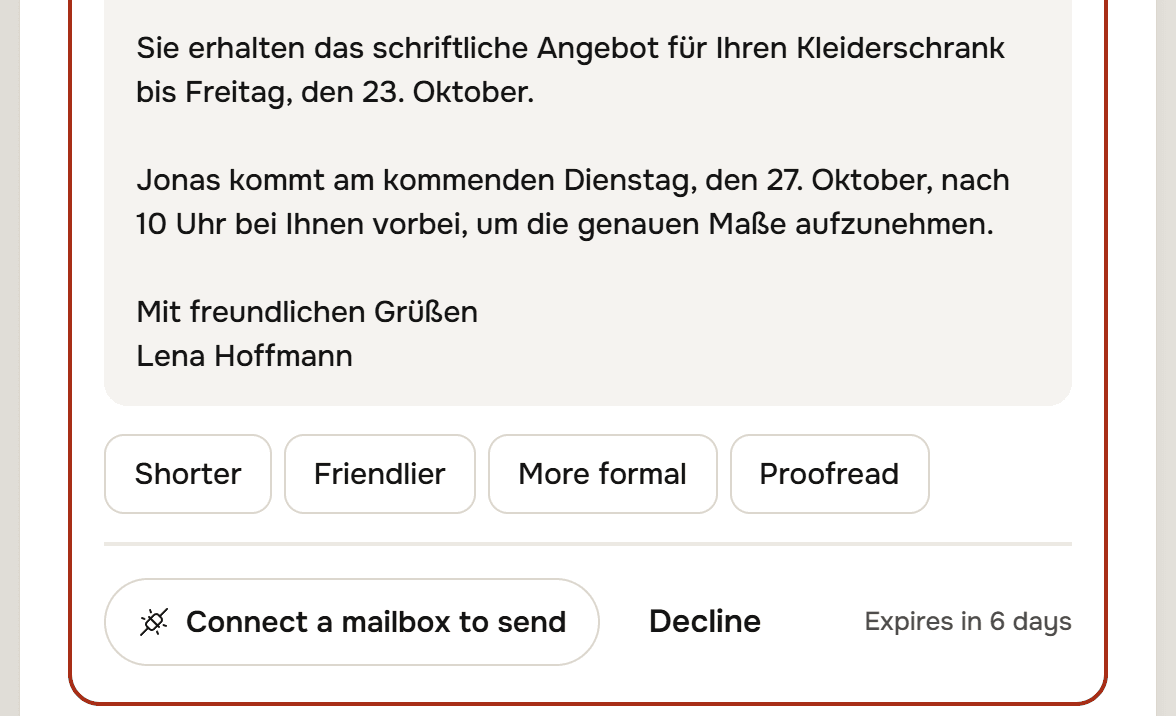
Lena's Monday task reads: "Every Monday at 08:00, build a one-page PDF of last week's completed jobs with a chart of what was invoiced, from the jobs export in my files." werkfolk read it back as Every Monday at 08:00 (Berlin time), for the Accountant.
At eight on Monday the Accountant opens the export, picks out last week's rows, totals what was invoiced and lays out the page. The reply lands in the task's thread with the chart drawn in it and the PDF's first page shown, so the morning check is a glance rather than a download. The PDF is on the Files screen too.
The figures come from a program the Accountant writes and runs over the file, not from its own arithmetic (Do the books match the bank? shows the same for a reconciliation). If the page is for Brigitte Sauer, the bookkeeper, reply in the thread: "draft an email to Brigitte with this attached". That comes back as an email card you send yourself. A scheduled run never sends anything out by itself.
When this happens: rules on an event
Some work starts when something happens rather than at a time. Say it in the command bar: "When a new invoice arrives in Files, record it as a bill with its due day". werkfolk reads it back as the exact sentence the list will hold and offers Set it up. A rule can listen for an email, a booking, a new file, a meeting coming up, or a change on a web page.
Each row says what it has done: how many things it checked, how many it acted on, and when it last looked. What it did opens its history. A rule runs as you, like a task, and an account holds 20. A noisy rule is capped at ten firings an hour and fifty a day.
When Brenner's invoice landed, the Accountant recorded it in twelve seconds and the bill showed up in Money, due 3 November.
On their own: what they already know to do
You do not have to write every rule. Each AI Employee ships with a set of moves it makes when something happens: When a receipt lands, When a bill nears, Before a meeting, The morning brief, The evening wrap, When a lead goes quiet. They are on from the first day. What they start shows up as a row of cards under the command bar.
One press does the thing; the cross sets the card aside. Open the thread and it says why it started.
Never offer this turns that move off for you.
The dial
Focus an AI Employee and its desk lists every move with a four-way dial:
- Off: it never starts.
- Tell: it says what it noticed in two sentences and prepares nothing.
- Offer: it prepares the thing and stops at a card for you.
- Do: it does it and says so in a line.
Recording a receipt or an invoice can be undone for an hour. Anything that sends starts at Offer. After five offers in a row taken unchanged, the card asks once, "Let me send these myself?", and only a yes moves it to Do. Even then a mail waits 30 seconds with Stop before it goes. Your answer to "How far should they go on their own?" sets where an untouched dial starts, but never moves one that sends.
Standing orders: your rules for each of them
On the same desk, Standing orders are your instructions to that one AI Employee: "Overdue invoices before anything else", "Ask before filing anything that looks personal". Up to ten, one line each. They apply to everything that AI Employee does for you, scheduled tasks and rules included. An order such as "never send without asking" keeps every sending move at Offer, whatever its dial says.
The week on the Horizon
All of it is placed on the Horizon on the home screen. A scheduled task appears at its time, the morning brief and the evening wrap as moves made on their own, and a rule that runs before each meeting just ahead of the meeting. A rule waiting on mail, a file or a booking cannot be dated, so it is named on a Listening line instead. Press Show beside This week to see the week as rows.
Where to go next
Try it on your own business.
One subscription covers all five AI Employees and everything in these articles.