5 min read
How the work stays in order
Threads, Topics, marks, tags and pins keep every job findable, and next steps, question cards and what you said turn into the next move.
By Wednesday afternoon Lena had asked for a lot. A reconciliation of August's payments, a quote for Familie Krüger's wardrobe, a post for the website, the price of a hinge, an email to Herr Krüger. Five AI Employees, sixteen threads, and a meeting in between. None of it lives in a chat that scrolls away. Each job keeps its own place, says where it stands, and carries the next step it suggests. This guide is how that works.
One line, one thread
Each line you send from the command bar starts a thread, and the thread is a row on the Today list. Ask a follow-up in the thread and it stays there, answer and all: the row moves back to the top of its group instead of a new row appearing. A fresh line in the command bar always starts a fresh thread.
Each AI Employee keeps one conversation with you, divided into Topics, one per subject. A new line opens a new Topic, named from its first words until the AI Employee gives it a better title. Work they start themselves gets its own thread too: a hand-off from a colleague arrives as Passed on by the Accountant, and a call keeps its own thread named after its closing line.
The row says where the job stands in words: Answered, Done, Has a question for you, Scheduled. The filters across the top count them: All, Needs you, In progress, Done. Anything that waits on your decision sits under Needs you, and Select all that wait lets you approve several at once.
Open a thread beside the list
Press a row and the thread opens on the right while the list keeps its column. The head names who did the work and when, then the request, then its tags. Under it, the whole exchange, and at the foot a field to reply in.
In progress and Done are yours to set. Mark a thread done and it is done, even if the last reply ended on a question. Mark one in progress to keep it under In progress. A decision waiting or an AI Employee at work still outranks your mark, and anything said in the thread afterwards lets the thread decide again, so you never have to clear one.
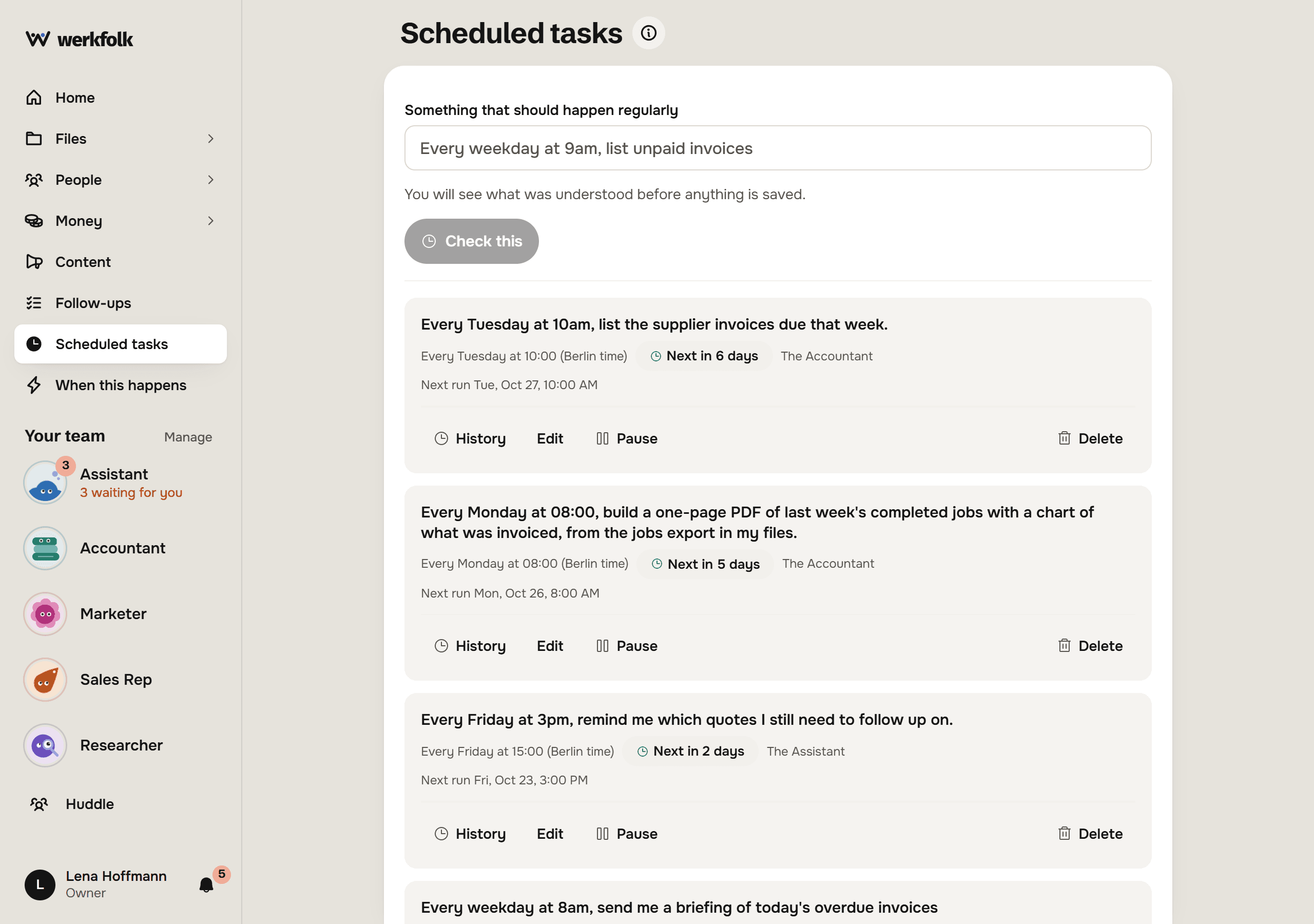
The pin keeps the thread in Pinned on the home screen, one press from opening however old it gets. A pin is a bookmark: nothing reruns. You keep up to twenty. To have something asked again on a schedule, use Do this regularly under the reply instead (Work that runs without you).
The phone starts a call with that AI Employee about this thread, and what the call settles lands back in it. The flag opens Report this thread, which sends it, with what you write, to the werkfolk team.
Up to three tags per thread
After a reply, werkfolk gives the thread one to three tags: the kind of work, a client, the subject. It reuses your own words where they fit, so "Email", "emails" and "E-mail" stay one tag. The moment you add or remove a tag on a thread, its tags are yours and the model never touches them again.
Tags on the Today list filters by one of them. Manage tags at the foot opens Your tags: every tag you use and how many threads carry it.
The pencil renames a tag on every thread. The arrow moves its threads onto another tag, so two tags become one. The bin removes it and asks once; the threads stay. A Huddle, where several AI Employees answer one message, has none (Your team covers Huddles).
What they suggest next
werkfolk suggests from what is already in front of you, never from a list of things it could do.
Next steps. Under the newest reply, up to three buttons offer what could follow, each naming something from that exchange. Pressing one fills the field. Nothing is sent until you send it.
Starters. When you focus an AI Employee by pressing its face in Your team, its desk offers a few things to ask, written from your own open threads.
Question cards. When an AI Employee needs two or more facts, or a choice among things you cannot see from where you are, a small form comes under its reply. Your answer goes back as an ordinary reply in the thread.
Who to start with. From what you picked during sign-up, the home screen offers one desk to start at, once per device.
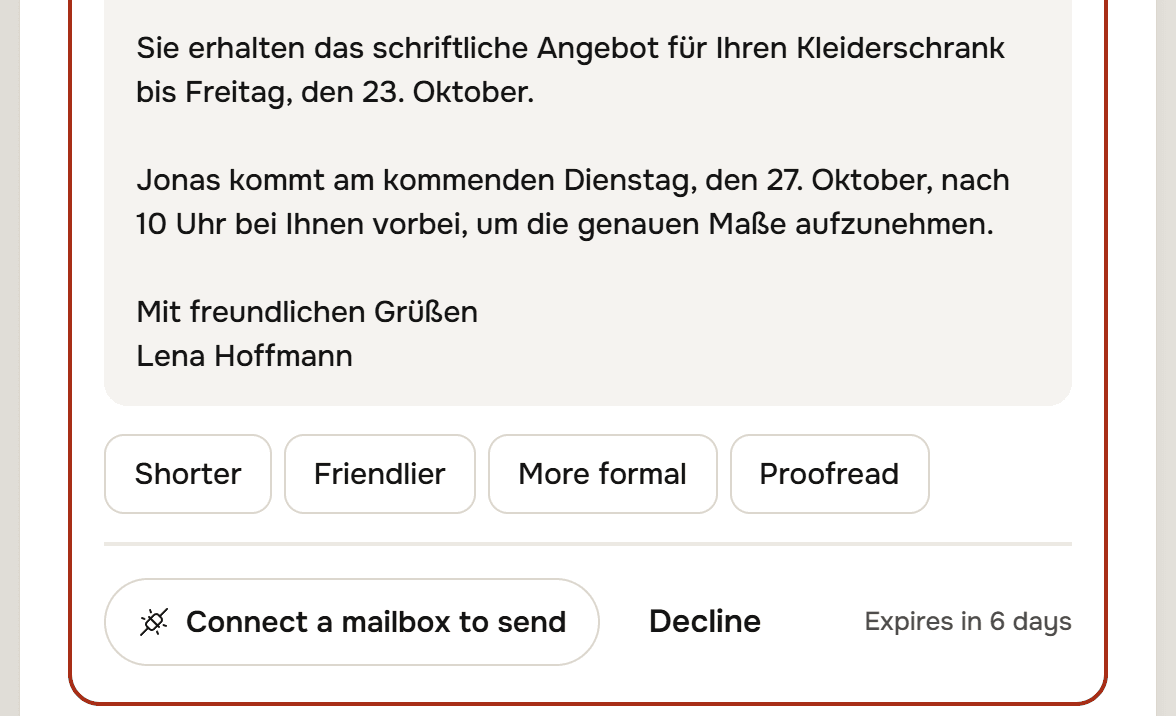
What you said. After you write, werkfolk reads your own words for things worth keeping: a meeting with a day and a time, a promise, a deadline, someone new, an address. On Wednesday that produced two cards on the home screen. After the wardrobe consultation, Three follow-ups from the meeting, with Make them. After Lena mentioned where the Krügers live, Save Familie Krüger's address. A date, a person or an address you gave is usually just saved, with one line in the thread and Undo. An amount, a change to a meeting or a list of action points waits for a press.
Due and follow-ups. Due this week in the right column lists follow-ups and bills as they fall due. On the day one does, the AI Employee that keeps it tells you once, in a thread of its own: a bill to the Accountant, a lead to the Sales Rep.
How a reply shows its work
Every reply keeps a receipt. Done in 48s opens to the steps it took. How I got this lists what it drew on: the files it read, the web pages, the colleague it asked. Files it made sit under the reply, and they are on the Files screen as well (Files: a shelf they work from).
While the work is happening, the Right now panel under the command bar shows the same steps live.
Steer, or stop
You do not have to wait for a reply to say more. Write in the thread while the AI Employee works and it reads your line at its next step, then says in the reply how it took it into account.
If it is going the wrong way, the Stop beside the reply field ends the turn. The thread then reads "Stopped by you.", or says that some of the work was already done, so you know to check before asking again. A line you sent just before pressing Stop is answered next.
Where to go next
Try it on your own business.
One subscription covers all five AI Employees and everything in these articles.